This article guides you a step by step on how to install Joomla from your cPanel. Login into your cPanel and follow these steps:
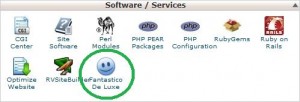
1. Click "Fantastico" icon under Software / Services section
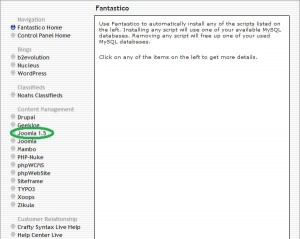
2. Scroll down to “Content Management”. Find the “Joomla 1.5” link and click on it.
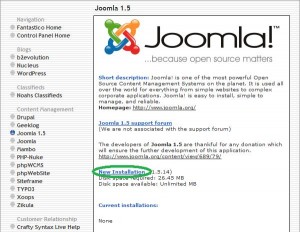
3. Click “New Installation”.
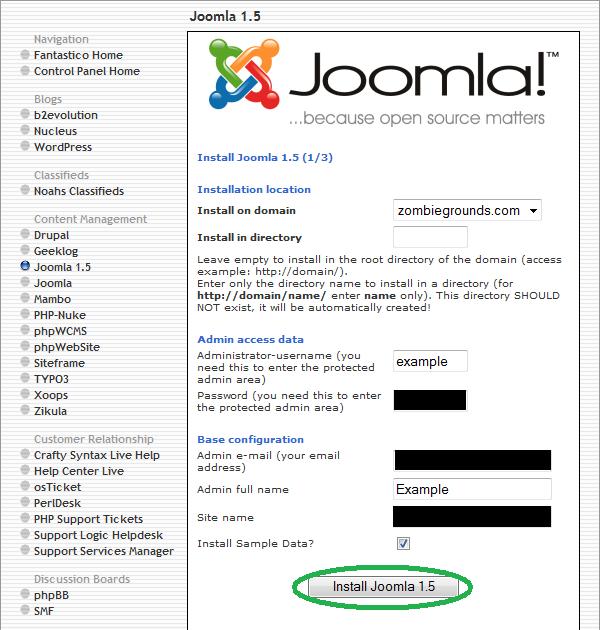
4. Fill out all of the boxes. For “Install on domain”, choose the domain you want Joomla to install to. The default will be the domain you signed into. For “Install in directory”, choose the directory you want to install Joomla to. By default, it will install in your root directory if you leave the box blank. Create an administrator user name and password. Enter the administrators e-mail address and full name. Enter your sites name. Choose if you want sample data to be installed or not. When you are finished, click “Install Joomla”.
5. Double check your information and then click “Finish installation”.
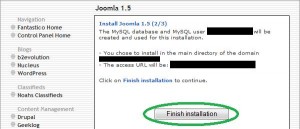
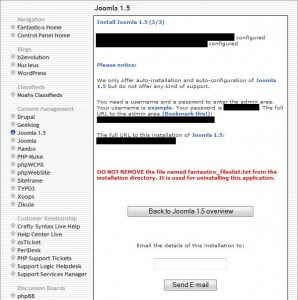
6. You will then get a confirmation page of your installation.