
Click here to download puttygen
Open PuTTY Key Generator (puttygen.exe in the putty folder) which should look something like:
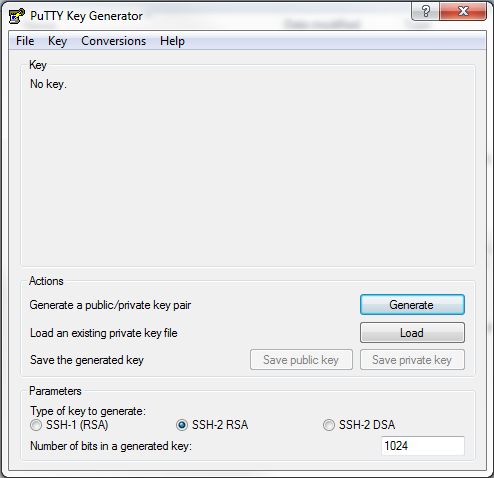
PuTTYGen supports 3 key types:
1.SSH-1 (RSA),
2.SSH-2 RSA, and
3.SSH-2 DSA
SSH-1 has some design flaws which make it more vulnerable than SSH-2. SSH-2 also contains more features than SSH-1. Only choose SSH-1 if the server/client you want to connect to does not support SSH-2. The default SSH-2 RSA is probably better than SSH-2 DSA.
The Number of bits in a genereted key sets the size of your key, and thus the security level. For SSH-2 RSA, it's recommended to set this at a minimum of 2048. PuTTYGen defaults to 1024. Setting this to 4096 would provide an even stronger key, but is probably overkill for most uses.
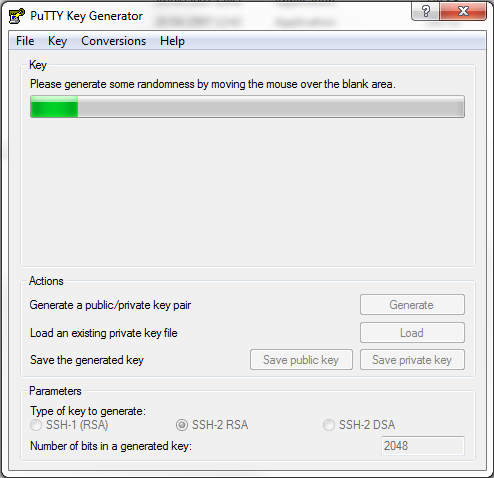
Click Generate to start the key generation. You should now see something like the figure below (make sure you move your mouse as suggested above the progress bar):
The result of the key generation is shown below, with the public key highlighted in red (in the box labelled Public key for pasting into OpenSSH authorized_keys file).
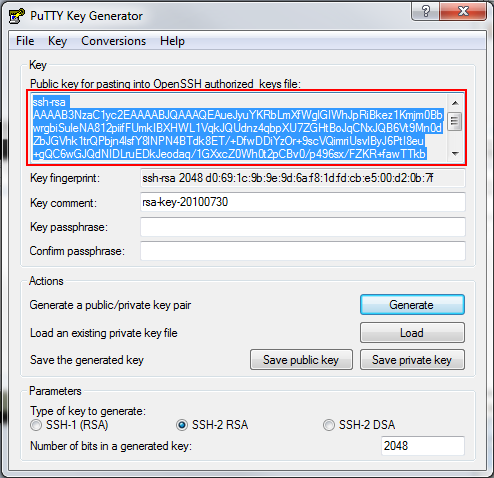
The Key comment enables you to generate multiple keys and easily tell them apart. It's general recommended to set this to username@hostname, where the username is the username used for login, and hostname is, as it says on the tin, the name of the host machine. For example, for a user 'tom' on domain 'example.com', set this to tom@example.com.
The Key passphrase is an additional way to protect your private key, and is never transmitted over the internet. The strength of your key is not affected by the passphrase in any way. If you set one, you will be asked for it before any connection is made via SSH (a bit annoying probably). Setting it might gain you a few extra moments if your key falls into the wrong hands, as the culprit tries to guess your passphrase. Obviously if your passphrase is weak, it rather defeats the purpose of having it.
Note that if your set a passphrase and forget it, there is no way to recover it. When you reload a previously saved private key (using the Load button), you will be asked for the passphrase if one is set.
Here is what PuTTYGen looks like after editing the key comment and the passphrase.
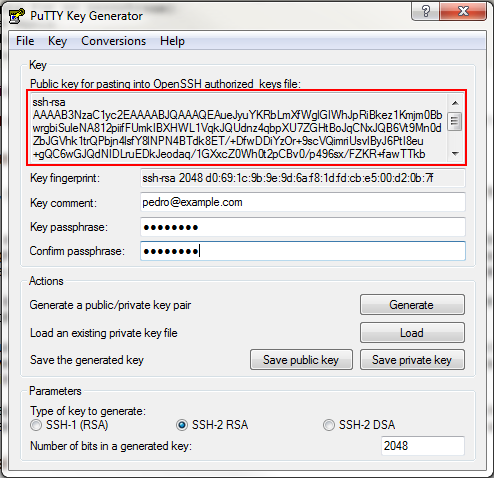
Now save your keys - one private and one public - using the Save private key and Save public key buttons respectively. You can save the public key in any format - *.txt is good. The private key is saved in PuTTY's format - *.PPK. PuTTY will need this private key for authentication.
The public key in the highlighted box is all in one line as expected by OpenSSH, and is in the correct format (unlike the version you just saved). If you are using OpenSSH, this is what you paste in your .ssh/authorized_keys file.
