
You can point your site to any IP address you want without changing the name server of your domain name. This is useful when you want to view or test your site in new hosting account without changing name servers of domain name. This is also useful when you have trouble using sitepreview option in Plesk.
Step 1 - Open Notepad
Windows xp users:
Start -> All Programs -> Accessories -> Notepad
Windows Vista or Windows 7 users:
Start -> All Programs -> Accessories -> right click over Notepad, then from the context mentu that pops up, select "Run as administrator"
Step 2 - Open hosts file in notepad
hosts file can be found at below given path. Open the path in notepad
C:\Windows\System32\drivers\etc\hosts
If the file hosts doesn’t exist, create it. The hosts file does not have an extension. Add the following lines at the end of the document and save file:
74.125.236.80 mydomain.com
74.125.236.80 www.mydomain.com
Replace the IP 74.125.236.80 with the IP of the server where you will have your domain hosted. Replace mydomain.com with your domain name. In case of plesk control panel, you can find your hosting account IP address just below the domain name when you are in domain home page in plesk. In case of cPanel control panel, you can find IP address on left side of cpanel listed as "Shared IP Address". If you have any confusion about what is the IP address of your hosing account open a ticket in support. It’s important to have at least one space between the IP-address and the domain name. Here’s a screenshot to better illustrate the hosts file: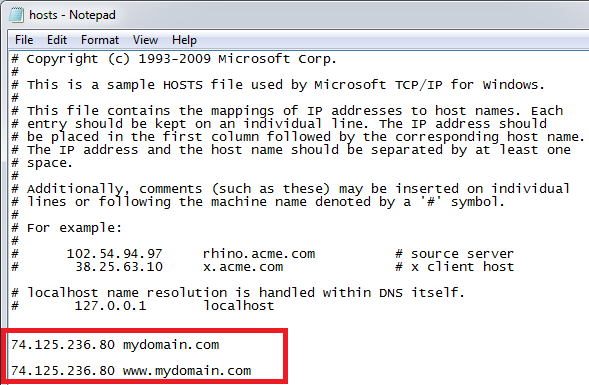
Now you can browse your domain's hosting account without changing name servers to that of hosting account. When you are done with testing, remove the entries made by you in hosts file.
- 12 A felhasználók hasznosnak találták ezt
