1. Access NGASI Panel from cPanel under "Advanced" section.
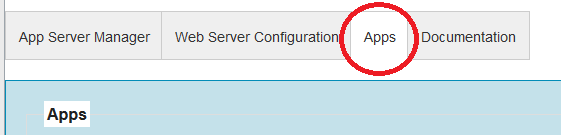
2. Access "Apps" section in NGASI AppServer Manager
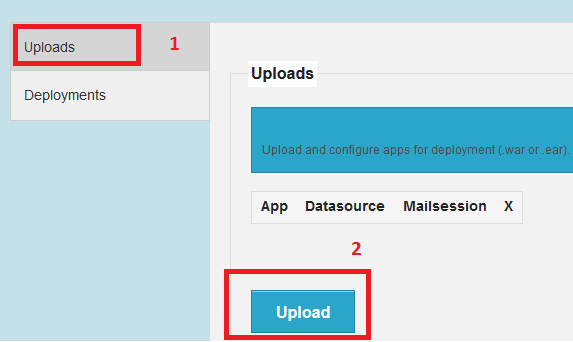
3. Upload java application .war file
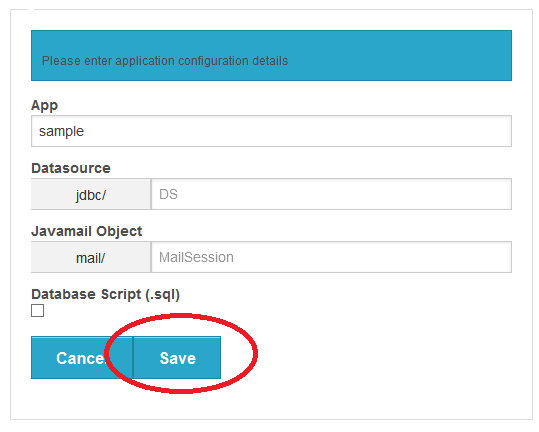
4. When upload finishes, a dialogue box pops up. Click "Save" Button to save uploaded .war file in server. Use default values found in dialogue box.
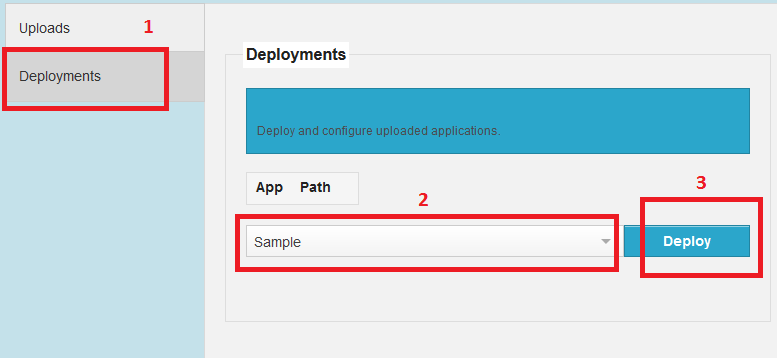
5. Deploy uploaded .war file from list of applications in "Deployments" tab. Select application you want to deploy from the list and click "Deploy" button. To remove an uploaded .war file from list, click the x button next to the uploaded application found in Uploads section.
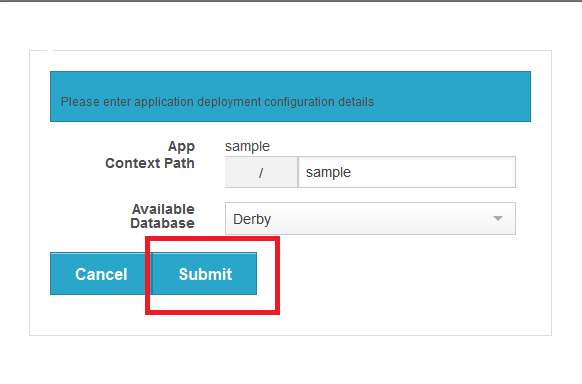
6. Click "Submit" button in dialogue box that pops up.
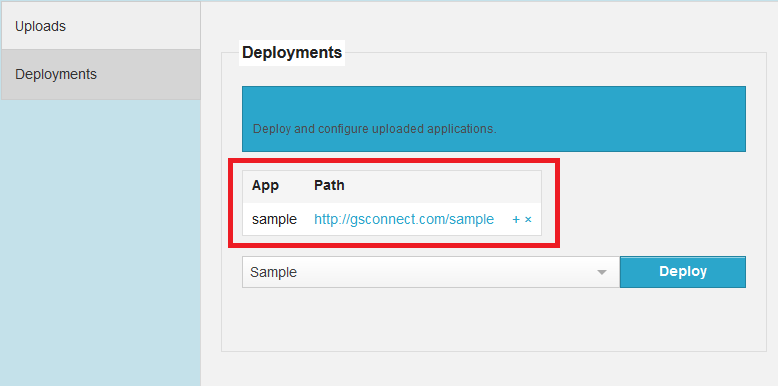
7. When installation is finished, application will be listed in "Deployments" section.
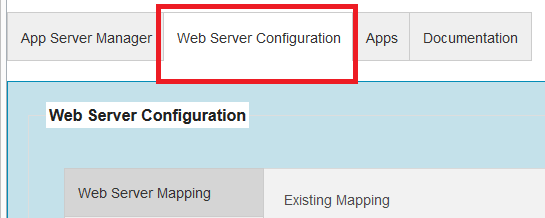
8. To access the installed application, you need to configure context access path in webserver. Access "Web Server Configuration" tab
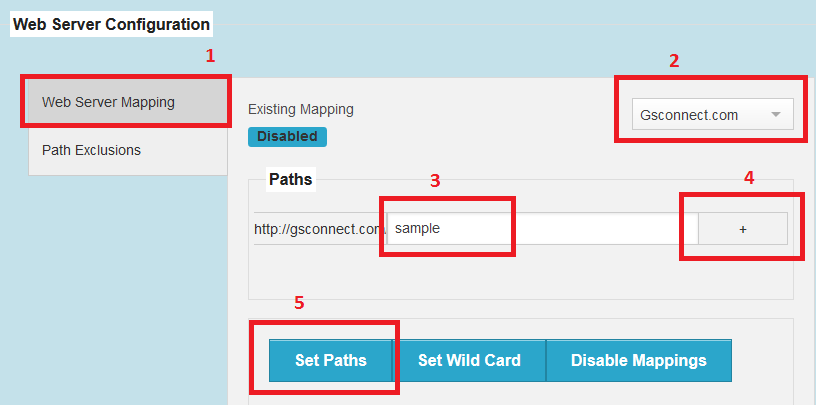
9. Configure access path as shown in below given image
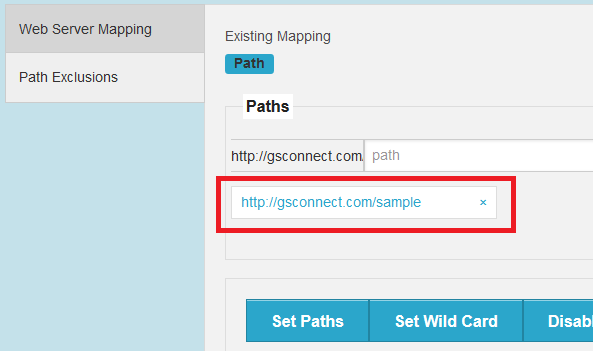
10. After configuring context, it will be listed as shown in below given image. You can access the application using listed URL.
11. To go back to application manager section, click "App Server Manager" tab on top.

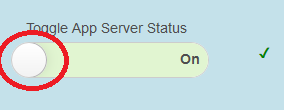
12. If you would like to start or stop application server, you can do it using on/off toggle button provided in "App Server Manager" tab
Off state, click highlighted button start applicatin server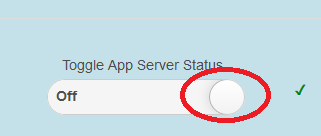
On State, click highlighted button to stop application server