WinSCP Connection Configuration

You can download WinSCP from the official website: https://winscp.net/ 

  1. After installing WinSCP, open the application.
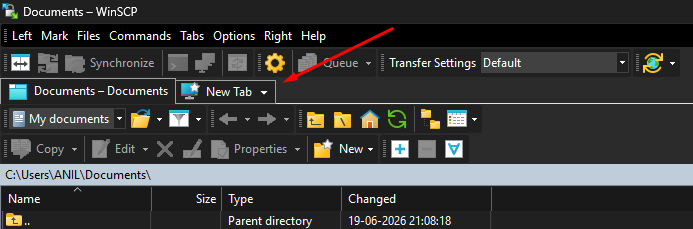
  2. Click the "New Tab"

    WinSCP New Tab

3. Configure connection parameters as shown in the image, then click the "Login" button to connect to the FTP server.
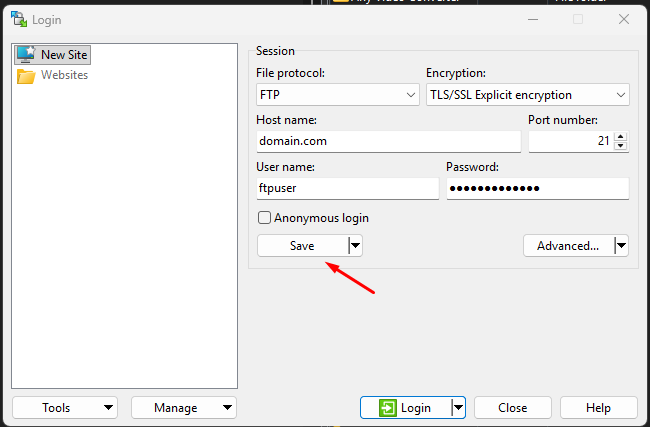
WinSCP Connection configuration dialogue box

  • WinSCP FTP Client, WinSCP
  • 100 Utilizadores acharam útil
Esta resposta foi útil?

Artigos Relacionados

What is FTP ?

FTP stands for File Transfer Protocol. As the name suggests, FTP is used to transfer files...

How do I use FTP ?

First of all you need to have a FTP client application. Some popular ones are FileZilla,...

Why I get socket errors during FTP ?

In your FTP client's settings, go to connections option. Each FTP client has something like this....

How do I show hidden files in FTP?

Configuring your FTP client to show hidden files is a process that differs significantly from...

How to configure SFTP in FileZilla to connect to Linux hosting account?

FileZilla is a free ftp client which can be used to upload/download files to/from your hosting...